After time entries are entered and verified, you can calculate the payroll checks in the Process Checks window. The Process Checks functionality calculates the employee deductions, employee net pay and unemployment tax. FICA, Medicare, and tax deposits are also calculated in this window. Payroll can be calculated multiple times without distorting the payroll.
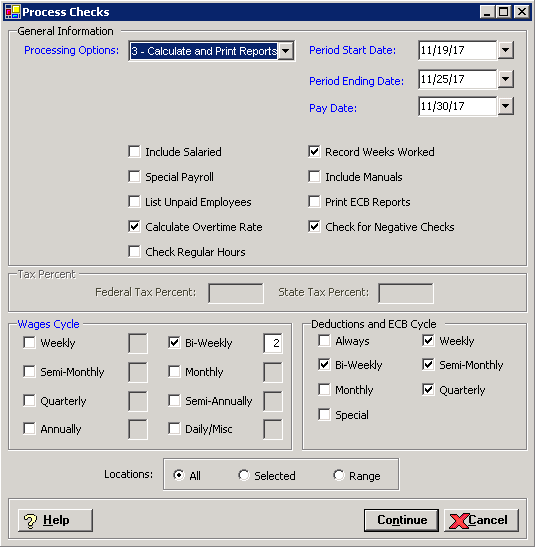
To access the Process Checks window, click the Calculate Checks button on the main Payroll window, or go to Payroll > Process Checks > Calculate Payroll. [+]
In the Processing Options field, use the drop-down list to select one of the following options: 1- Calculate Checks Only, 2 - Trial Check Report Only, or 3 - Calculate and Print Reports.
In the Period Start Date field, use the drop-down calendar to select the pay period start date.
In the Period Ending Date field, use the drop-down calendar to select the pay period ending date.
In the Pay Date field, use the drop-down calendar to select the check date.
Select any of the following check boxes.
Include salaried employees - Select if hours are not entered for salaried employees and they should be included in the payroll. NOTE: The system will automatically enter hours for salaried employees if the Enter Hours for Salaried Employees check box is selected within the General/Time Entry Information tab in System Parameters.
Special Payroll - Utilized to pay an employee for a bonus or special pay. Only taxes and pensions are withheld from the wages. If this option is selected the entire payroll will be treated as a special payroll. See Calculating Special Payroll (below).
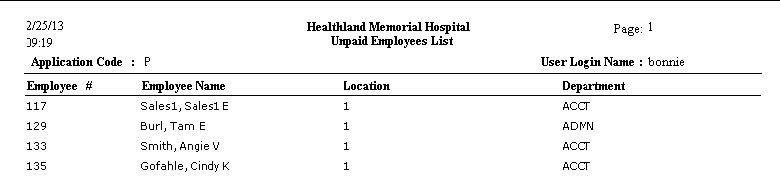
List Unpaid Employees - Provides a report of employees not paid after the Trial Check Report is printed.
Calculate Overtime Rate - Calculates the overtime average overtime rate based on the Wage and Hour laws. NOTE: The Include Hours and Include Dollars options in the Wage Codes master file determine whether or not the wage code's hours and dollars are included in the overtime calculation.
Check Regular Hours - Provides a report of any employee with more regular hours than a full time employee for this wage cycle. If the pay cycle is weekly, the report will include anyone with more than 40 regular hours in that pay period. If the pay cycle is biweekly, the report will include anyone with more than 80 regular hours, etc. If any employee exceeds the regular hours for the pay cycle they will be included on a separate report and must be corrected before the payroll can be completed.
Record Hours Worked - Adds the hours worked for each employee to the temporary file used for quarterly wage reporting. If this information is not required on your state quarterly reports, do not select this option.
Include Manuals – If manual checks were processed since the last payroll, this option will include the manual checks for the deposit. A separate page will be printed for the manual checks tax deposit information.
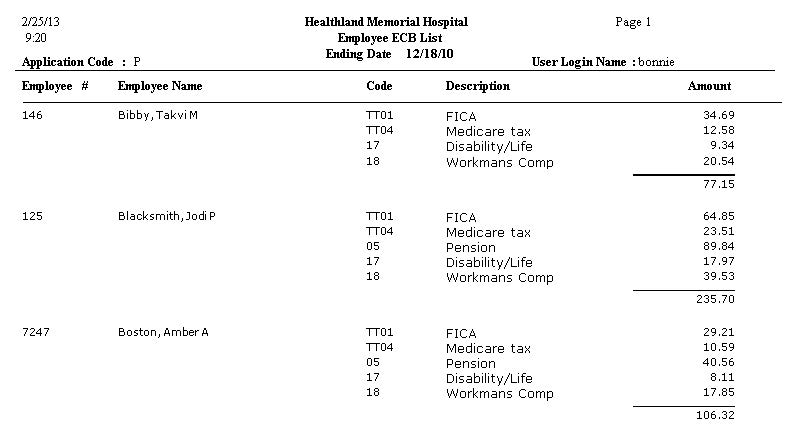
Print ECB Reports - Generates the ECB reports for the payroll after the Trial Check Report prints.
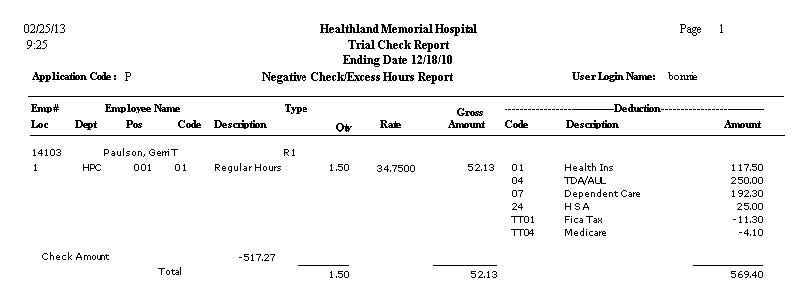
Check for Negative Checks - Generates a report of any employee that has more deductions than pay. The payroll checks and direct deposits cannot be printed if there is a negative check.
In the Wage Cycles section, select the appropriate check box for the payroll. NOTE: Payroll is calculated for a single wage cycle only. To run payroll for another wage cycle, you must complete the full process of the existing payroll calculation (i.e., complete the Post Checks process).
In the Deductions and ECB Cycle section, select the appropriate check boxes.
In the Locations field, select the option that determines the locations to include. Select All (default) to include all locations, or choose Selected or Range to specify the locations you want to include. See Reporting/Printing Functions for detailed information on using the Selected and Range options.
After entering the required and optional fields, click Continue.
The following warning message is displayed when a check/direct deposit is already printed/processed, and the check is calculated again with a changed pay date: The checks and direct deposit are already printed for some employees. Please re-print checks and direct deposits to accurately reflect the change in date. Checks and direct deposit should be reprinted to ensure the Check History shows the correct check date.
The payroll calculation process is cancelled and the following message is displayed when the W-4 Year is greater than the check date year for any employee: One or more employees in this payroll have a W-4 Year value that is greater than the check date year. This configuration may result in incorrect Federal withholding amounts. Please update the employee(s) or the check date before proceeding. Click OK. You cannot proceed with payroll processing until the W-4 Year is equal to or less than the check date year.
The message, Payroll Process Completed, is displayed. Click OK. A preview copy of the Trial Check Report is displayed in addition to any other options you selected in the General Information section. See To preview the report for options available in the Report Viewer.
If you do not receive a Payroll Process Completed notification, it may be because of an option that you selected in the Process Checks window. Make sure you have selected the appropriate entry in the Wage Cycle section and the correct check boxes are selected in the General Information section.
For options 2-Trial Check Report and 3-Calculate and Print Reports, if the Populate Affordable Care Act Hours field in System Parameters is set to 2-ACA Hours of Service Reported, the Missing Payroll Calendar Entries report is printed for any employee payroll frequencies that do not have a matching payroll calendar in the Calendar Definition master file.
If you are processing special payroll, such as bonuses, the process is similar to processing standard payroll. In the case of processing special payroll, make sure the Special Payroll check box is selected in the Process Checks window.
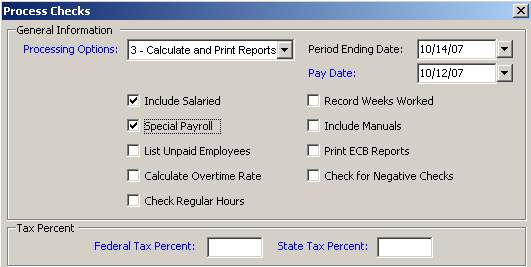
Check the Special Payroll box. The Tax Percent section is enabled.
Enter the appropriate percentages in the Federal Tax Percent and State Tax Percent fields.
Enter any additional information in the Process Checks window.
Click Continue.
Trial Check Report Example
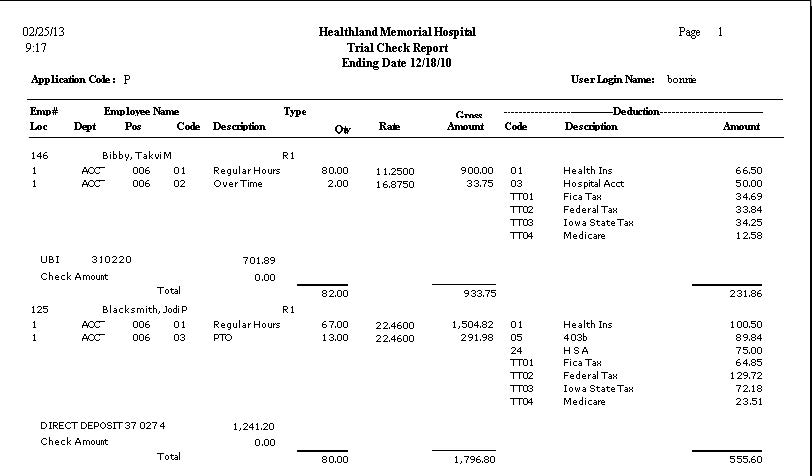
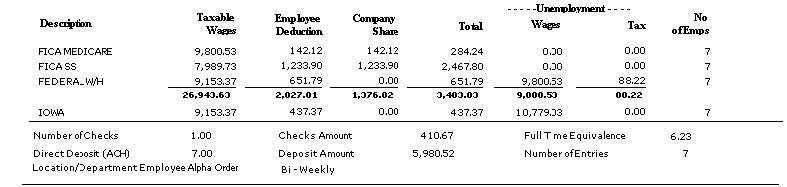
Trial Check Report Example - Summary totals
Trial Check Report Example - Employees without wages for selected cycles
Trial Check Report Example - Employees with either negative checks or excess hours
Trial Check Report Example - ECB list for employees with checks