Set up the User Defined Data master file prior to the Inquiry Code Parameter 1 and 2 master file.
The Inquiry Code Parameter 1 and Inquiry Code Parameter 2 screens allow you to create a restricted list of responses (up to two user-defined fields) that are used during registration for specific inquiry responses.
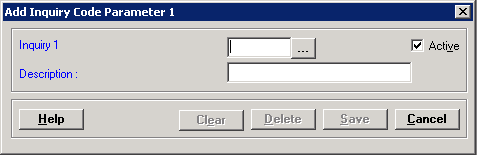
To access the Inquiry Code Parameters, go to Patient Registration > Master Files > Inquiry Code Parameter 1 or Inquiry Code Parameter 2. The Add Inquiry Code Parameter 1 or Add Inquiry Code Parameter 2 window is displayed respectively. [+]
The following tasks can be performed from this window:
In the inquiry field, enter the desired response code (up to six characters) to become one of the available responses.
In the Description field, enter a description for the above response code.
The Active check box defaults to checked, indicating that the response code is available for use in the system. If you do not want the response code available at this time, uncheck the box.
Click Save to save the code. Repeat steps 2-4 to enter additional response codes as needed.
Click Cancel to exit.
Once an Inquiry 1 or Inquiry 2 response code (first field) has been saved, it cannot be edited (only the Description field may be edited). If the response code is not used, it can be deleted. You can deactivate the response code by unchecking the Active box.
In the Inquiry field, click the ellipsis button to view the existing response codes/descriptions.
Double-click on the response code to edit.
In the Description field, edit the description.
Click Save to save your changes and close the window, or click Cancel to exit without saving your work.
In the Inquiry field, click the ellipsis button to view the existing response codes/descriptions.
Double-click on the response code to delete.
Click Delete. A verification message is displayed.
Click Yes to delete the response code, or click No to keep it.