Hospital rooms are classified based on types. The Room Location Types master file stores the charge code and indicates whether the system should use the charge code during the automatic calculation of room charges.
Setup considerations: When adding a room location type to the Room Location Types master file, also determine whether the new room location type requires setup in other Centriq master files. Click here to view a list >> [+]
To access the Room Location Types window, to Patient Registration > Master Files > Room Location Types. [+]
The following tasks can be performed from this window:
To display all room location types on file, click Find without entering any search criteria. The grid displays the room location types by Description in alphabetical order. You can click any column heading to sort the list based on that column. Click the column heading again to reverse the order (i.e., ascending or descending).
Change or narrow your search results by entering specific search criteria:
In the Search By field, use the drop-down list to select how you want to search the list and sort the results. Select from the following sort options: Charge Code, or Description.
In the Search For field, enter the specific term to search for based on the Search By field choice. Enter all or part of the term to retrieve all records that match the criteria.
Click Find to display the search results in the grid.
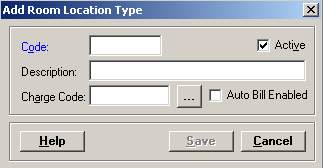
Click New at the bottom of the Room Location Types window. The Add Room Location Type window is displayed. [+]
In the Code field, enter a unique code (one to two alphanumeric characters) for the room location type. Examples: SP, PR, HS, IC.
In the Description field, enter a description of the room location type. Examples: Semi-Private, Private, Hospice, Intensive Care.
In the Charge Code field, click the ellipsis button to search for the charge code to use for calculating patient room charges. NOTE: Only Charge Master items that have the Room Charge check box checked are available for selection.
Check the Auto Bill Enabled box to use the charge code in calculating room charges for the room location type. This box is unchecked by default. NOTE: If a valid room charge number is entered in the Charge Code field, the Auto Bill Enabled box must be checked if the charge number is to be used in calculating room charges. If the Auto Bill Enabled box is checked and no charge code is entered, the Charge Code field becomes required and the room location type cannot be saved until a valid charge code is entered.
The Active check box defaults to checked, indicating that the room location type is available for use in the Centriq system. Uncheck the box to make the room location type unavailable/inactive.
Click Save to save the room location type and close the window, or click Cancel to close the window without saving.
The Edit button allows you to edit the room location type field values or to change the active/inactive status of a room location type.
In the Room Location Types window, find and select the room location type that you want to edit.
Click Edit. The Edit Room Location Type window is displayed.
Edit the fields as needed; refer to the field descriptions from To create a room location type (above).
Click Save to save your changes and close the window, or click Cancel to exit without saving.
Follow the instructions below to delete a room location type from the master file if it is not in use. Note: You can also choose to deactivate the room location type, rather than delete it, by unchecking the Active box in the edit screen.
In the Room Location Types window, find and select the room location type that you want to delete.
Click Delete. A verification message is displayed.
Click Yes to delete the room location type, or click No to keep it.
Follow the instructions below to display and/or print a list of room location types on file.
In the Room Location Types window, choose your search criteria and click Find to display the room location types that you want to print. All records that are visible in the grid will be included in the report.
Click Print. The report is displayed in the Report Viewer, where you can save the list to the PC/network or print the list to an assigned printer. See To preview the report for more information on options within the viewer.