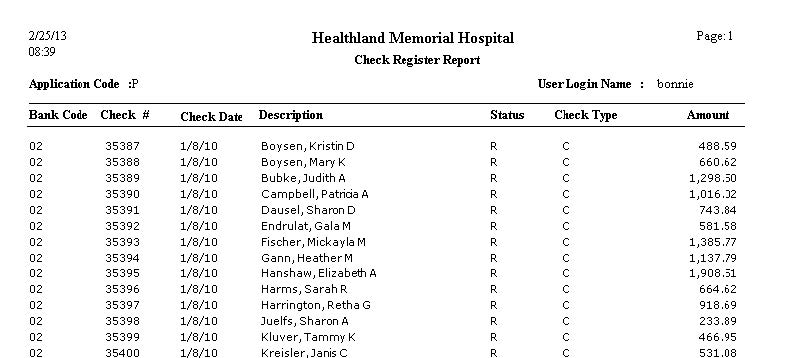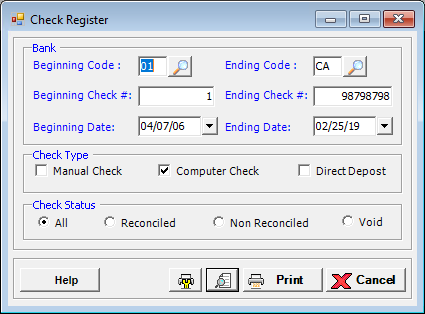
The Check Register shows all selected checks in Payroll for one or more banks. This report can be used for check reconciliation with the bank. The report includes the bank code, check number and date, check recipient, check status, check type, and the amount.
To access the Check Register window, go to Payroll > Reports > Check Register. [+]
Enter a range of bank codes to include in the report. By default, all bank codes with current payroll transactions are included in the report. To edit, enter the first bank code of the range in the Beginning Code field, and the last bank code of the range in the Ending Code field. Click the Search button in each field and double-click on the appropriate bank from the Banks window.
Enter a range of check numbers to include in the report. By default, all check numbers are included in the report based on the selected bank codes. To edit, enter the first check number of the range in the Beginning Check # field, and the last check number of the range in the Ending Check # field.
Enter a range of check dates to include in the report. By default, all check dates are included in the report. To edit, enter the first date of the range in the Beginning Date field, and the last date of the range in the Ending Date field. Use the drop-down calendar in each field to select the date.
In the Check Type field, check the boxes of the check types to include in the report. Choose from the following options: Manual Check, Computer Check, and/or Direct Deposit.
In the Check Status field, specify the checks to include in the report based on check status. Choose from the following options: All (default), Reconciled, Non Reconciled, or Void.
Click the Preview button (located to the left of the Print button) to view the Check Register Report in the Report Viewer, or click Print to print the report to the designated printer. See Reporting/Printing Functions for detailed information on using the Printer Settings and Print Preview buttons.
Click Cancel to exit.
Check Register Report Example