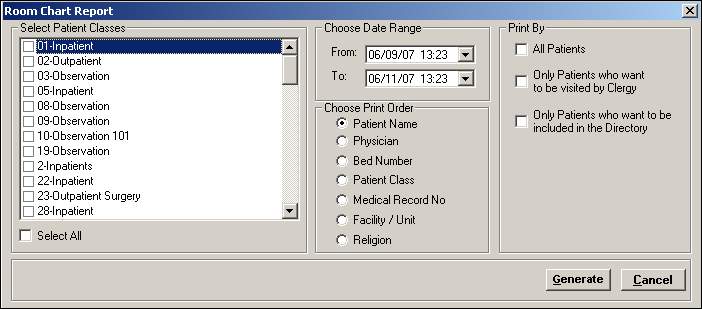
The Room Charts report provides an alphabetical listing of patients by patient class for a selected time frame, showing the number of days each patient was at the facility. This report can also be printed to include only those patients who are on the clergy list and/or in the hospital's directory.
To access the Room Chart Report window, go to Patient Registration > Reports > Room Charts. [+]
In the Select Patient Classes section, check the boxes of the patient classes to include in the report, or check the Select All box to include all patient classes. Use the scroll bar to view all available patient classes.
In the Choose Date Range section, use the drop-down calendars in the From and To fields to specify a range of admission dates and times to include in the report.
In the Choose Print Order section, select how to sort the report. Choose Patient Name, Physician, Bed Number, Patient Class, Medical Record No, Facility/Unit, or Religion.
In the Print By section, check any or all of the following boxes indicating the type of patients to include the report.
All Patients
Only Patients who want to be visited by Clergy
Only Patients who want to be included in the Directory
Click Generate. The report is displayed in the Report Viewer, where you can save the report to the PC/network or print the report to an assigned printer. See To preview the report for more information on options within the viewer.